
SURF Browser Onboarding: User Guide
Welcome to SURF. This guide walks you through installing the browser, authenticating, bringing your bookmarks across, and finding your way around the SURF home page.
If your organisation licenses SURF through Check Point, the browser may be branded "Check Point Enterprise Browser, powered by SURF". Everything in this guide applies either way.
What is SURF?
SURF is a zero trust enterprise browser. It gives you a normal, Chromium based browsing experience while applying your organisation's security controls (access control, data protection, safe browsing) in the background. Familiar Chromium features are all present: bookmarks, profiles, tab groups, history, and extensions.
Before you start
You will need:
- Your company email address, the one your organisation used to enrol you
- The invite email from invite@portal-surf-security.link, subject "Surf Invite: Verify Your Email" (check your spam folder if you cannot find it)
SURF does not require local admin rights to install. It deploys in your user context, so there is no need for elevated permissions or an IT ticket to get started.
If your IT team has already pushed SURF to your device, skip to Step 2: Authenticate.
Step 1: Install the browser
Open the link in your invite email. The download portal detects your operating system and offers the correct version automatically.
Windows
- Click the downloaded file to run it.
- The install runs silently in the background. Nothing else is needed from you.
- When it finishes, SURF opens automatically.
macOS
- Open the downloaded .dmg file.
- Drag the SURF app into your Applications folder.
- Open SURF from Applications.
Step 2: Authenticate
The welcome screen
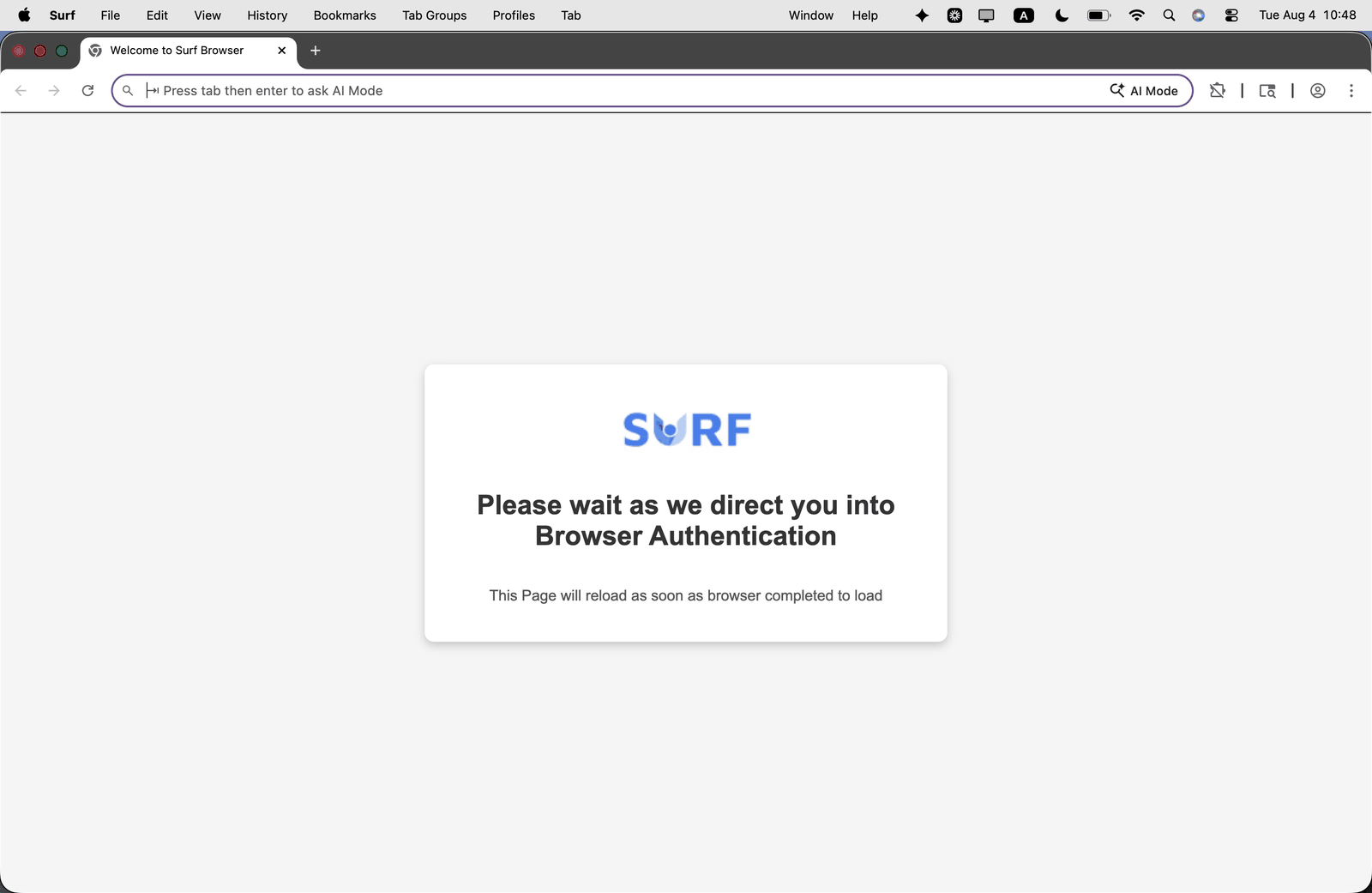
The first time you open SURF you land on a Welcome to Surf Browser tab showing the SURF logo and the message "Please wait as we direct you into Browser Authentication".
Nothing is required from you here. The page reloads on its own once the browser has finished loading and hands you over to the sign in screen. If it sits for more than a minute, refresh the tab.
Welcome to Surf Browser, "Please wait as we direct you into Browser Authentication"
The sign in screen
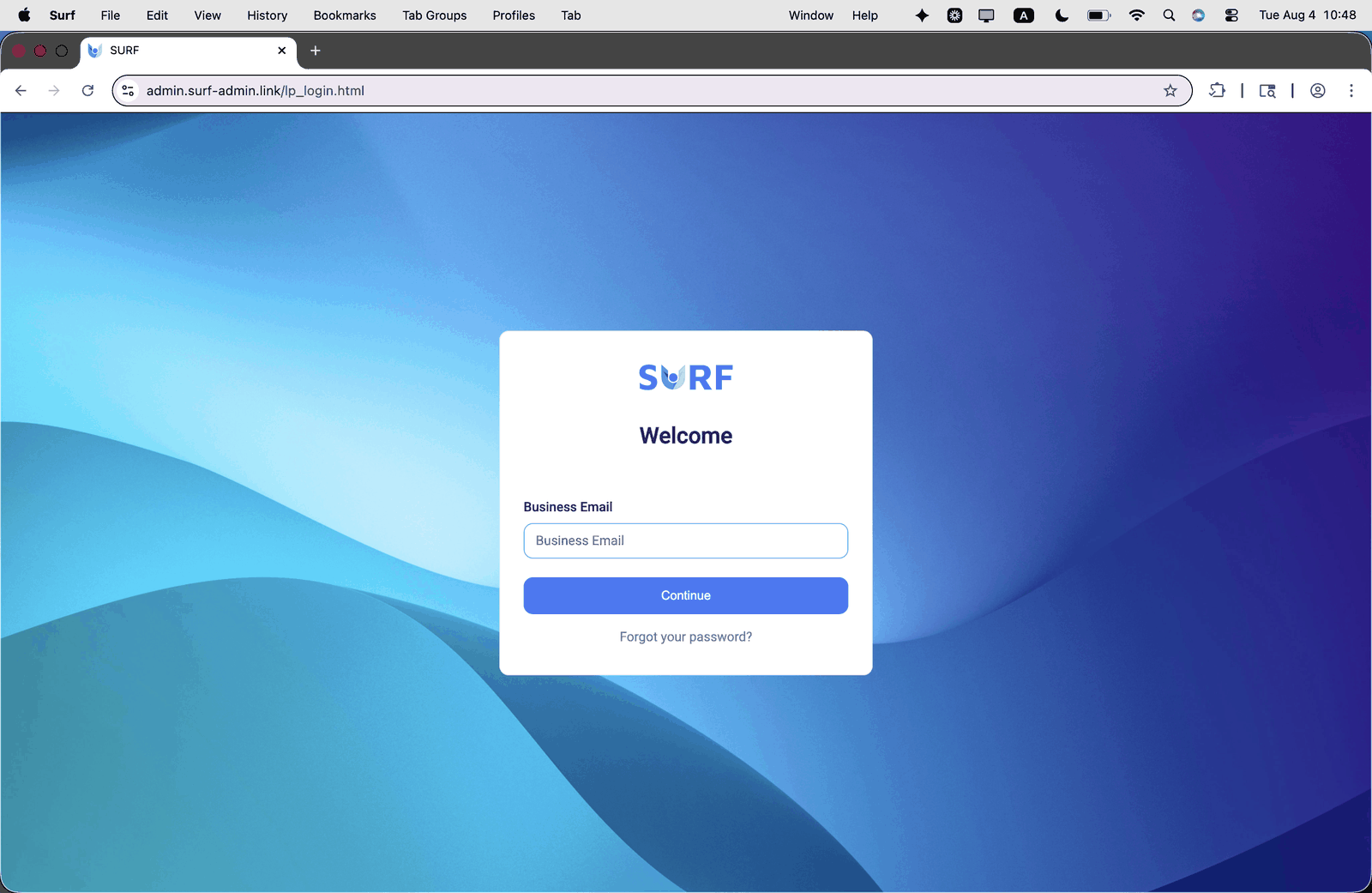
You are then taken to the SURF login page (the address bar will show a surf-admin.link address). You will see a Welcome card with a single field.
- Enter your Business Email. Use the company email address your organisation enrolled you with, not a personal address.
- Click Continue.
SURF Welcome / Business Email login screen
If your organisation uses an identity provider (SSO)
After entering your business email you are handed off to your identity provider. Sign in exactly as you would for any other work application, using your usual Okta, Entra ID, or equivalent identity, including your normal MFA prompt.
There is no separate SURF password to create or remember.
If your organisation does not use SSO
- A user account is created for you with your company email as the username.
- A password reset link is emailed to you. Check your spam folder if it has not arrived.
- Open that link and set your own password.
- Return to the sign in screen and continue with your company email and new password.
Use Forgot your password? on the sign in card if you ever need to reset it.
Step 3: Sync your Chrome profile
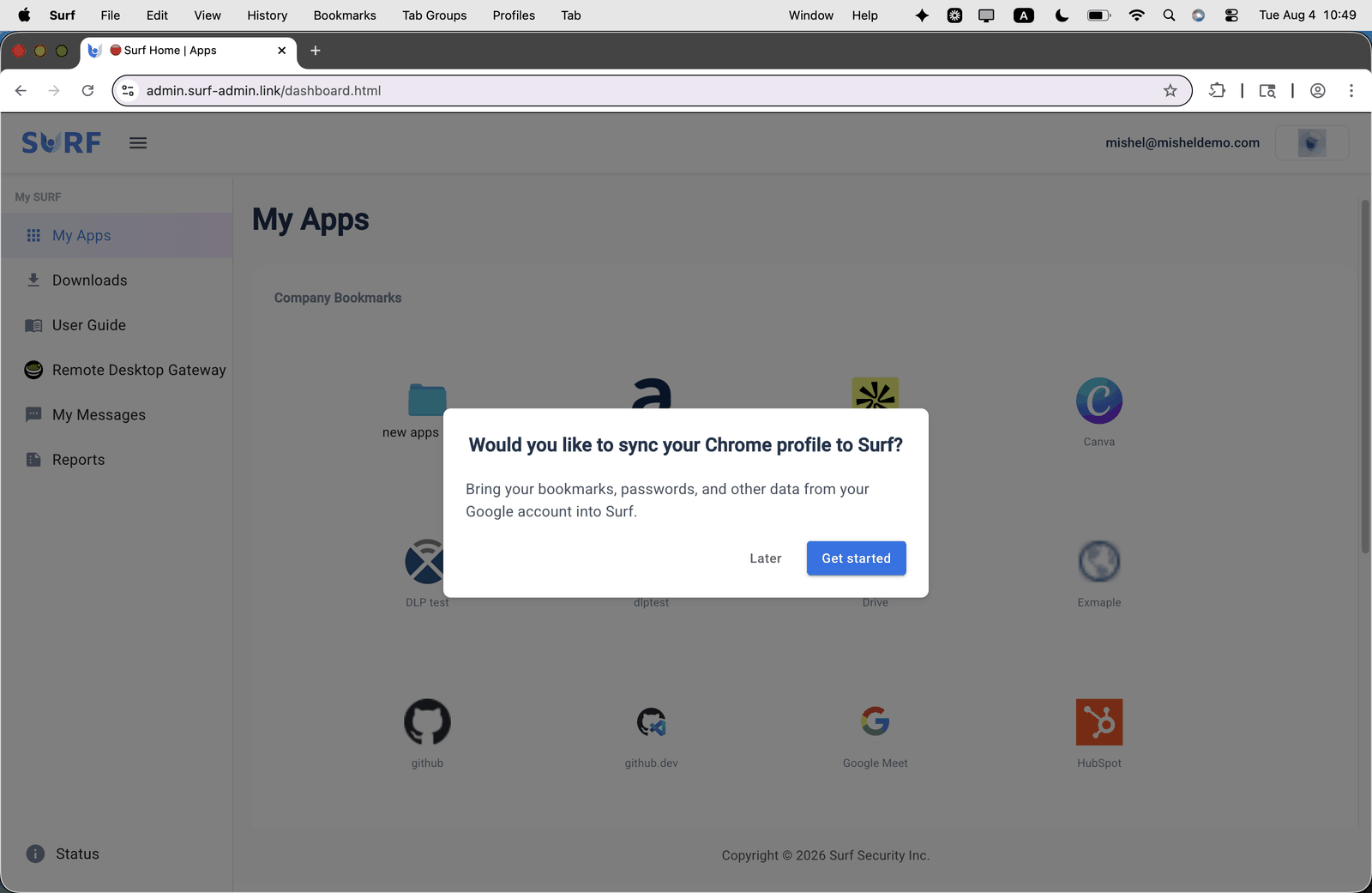
Straight after your first successful authentication, SURF offers to bring your existing browser data across:
Would you like to sync your Chrome profile to Surf?
Bring your bookmarks, passwords, and other data from your Google account into Surf.
- Get started: SURF walks you through the sync step by step, including signing in to your Google account and choosing what carries over. This is the quickest way to get your bookmarks and saved passwords into SURF.
- Later: skips the prompt. You can sync at any time afterwards from the profile (person) icon at the top right of the browser.
"Would you like to sync your Chrome profile to Surf?"
Importing from Firefox, Safari, or Edge
Google sync only covers Chromium browsers. From any other browser:
- In your old browser, export your bookmarks as an HTML file (follow that browser's own instructions).
- In SURF, go to More (top right) → Bookmarks and lists → Import bookmarks and settings.
- Select Choose file, pick your exported HTML file, and open it.
If you had no bookmarks in SURF, the imported ones appear directly in the bookmarks bar. If you already had some, they land in a folder called Other bookmarks at the end of the bar.
Step 4: Your SURF home page
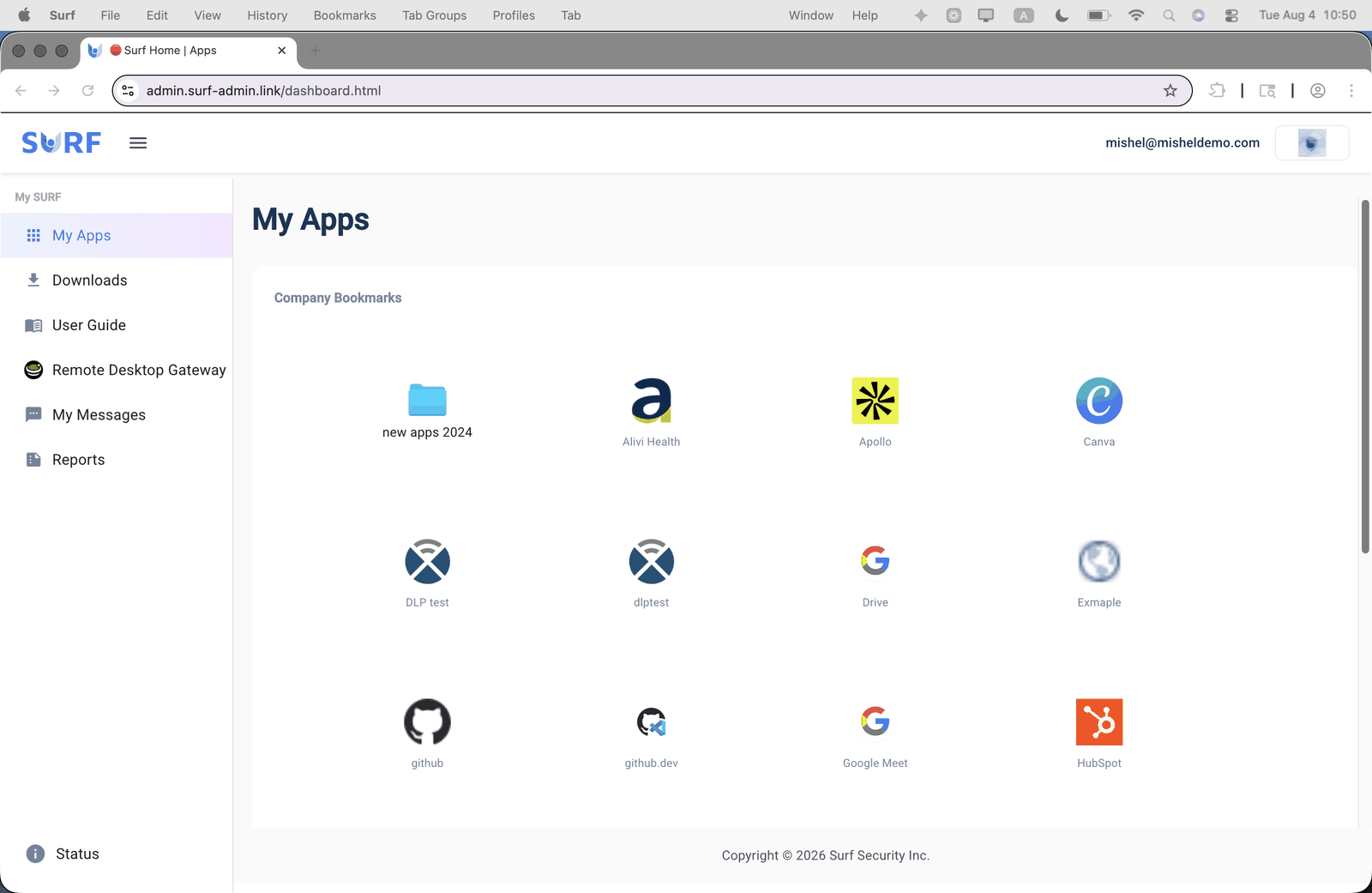
Once authenticated you land on My Apps, your SURF home page. This is the launch pad for everything your organisation has published to you.
My Apps dashboard with Company Bookmarks
The numbered sections below map to the four regions of that screen.
1. Header bar
Runs across the top of the page and stays visible wherever you navigate.
- SURF logo: returns you to My Apps from anywhere in the portal.
- Menu icon: expands and collapses the side navigation, giving the main panel more room.
- Your identity: the account you are signed in as, shown on the right. Worth a glance if you hold more than one work identity, to confirm you are in the right tenant.
- Profile avatar: your account controls, at the far right.
2. Side navigation
Grouped under My SURF. These are the areas of the portal available to you as an end user, as distinct from the admin console your IT team uses.
My Apps
Your home page, and where you land after signing in. Covered in section 3 below.
Downloads
Everything you have downloaded through SURF, in one list. Because downloads pass through the browser's policy layer, this view is also the record of what left a managed application, which matters if your organisation applies data protection rules to file downloads.
User Guide
In-product documentation, available without leaving the browser. Useful to point new starters at directly rather than sending them a separate document.
Remote Desktop Gateway
Privileged remote access to internal RDP and SSH systems, brokered through the managed browser. You launch a session from here and it opens in a tab, with no separate client, VPN, or jump host to install. Access is granted per system by your admin, so you will only see what you are entitled to, and sessions may be recorded depending on your organisation's policy.
My Messages
Your direct line to your SURF administrator. Messages you send here arrive in the admin's Messages portal, so this is the right place to raise an access request or flag that a control is blocking legitimate work. Replies come back to the same place.
Reports
Your own activity and access reports.
3. My Apps, your main panel
The main panel shows Company Bookmarks: the applications and sites your admin has assigned to you, each as a clickable tile. Folder tiles group related apps together, so click through to see what is inside.
You can add your own bookmarks alongside these. Your personal additions sit next to the company set, and the company tiles stay managed by your admin, so they update automatically when your access changes. If an app you need is missing, request it through IT rather than bookmarking the site yourself, so the correct policy is applied to it.
4. Status
Sits at the bottom of the side navigation, slightly separated from the rest. It reports connection and policy health for your session. Check here first if an application will not load or a policy seems not to have applied, before raising a ticket.
Quick reference
| Item | What it is for |
|---|---|
| My Apps | Your home page. Company Bookmarks plus anything you add yourself. |
| Downloads | Files you have downloaded through SURF, in one place. |
| User Guide | Shows how to sync to google profile |
| Remote Desktop Gateway | Launch brokered remote sessions (RDP and SSH) from inside the browser. No separate client needed. |
| My Messages | Notifications and messages from your admin, for example policy changes or access decisions. |
| Reports | Your own activity and access reports. |
| Status | Sits at the bottom of the panel. Shows connection and policy health. Check here first if something is not behaving as expected. |
What to expect as a user
Depending on the policies your organisation has enabled, you may notice some or all of the following. These are working as intended, not faults:
- Watermarks: a visible overlay on sensitive applications or pages.
- Copy block: copying content out of certain applications is prevented.
- PII masking: personal or sensitive data is obscured on screen until you have a reason to reveal it.
- Web filter: some sites are blocked or warned on, based on category or policy.
If a control is getting in the way of legitimate work, raise it with your IT team rather than trying to work around it. Policies can be adjusted.
Day one checklist
- Invite email received and opened
- SURF installed
- Signed in with your business email
- Identity provider sign in completed, or password set
- Chrome profile synced, or bookmarks imported
- My Apps reviewed and work applications opened successfully
Frequently asked questions
The welcome screen is not moving on.
Refresh the tab. If it still does not progress, quit SURF completely, wait a moment, and reopen it.
I cannot access an application, and it looks like policy has not been applied.
Sign out of your user account and sign back in. This forces a policy refresh and resolves most cases.
If that does not work, open a new browser profile and try again. Check Status in the side navigation as well. If it still fails, contact SURF support with the application name and what you see.
An app I need is missing from My Apps.
Company Bookmarks are assigned by your admin. Request access through your IT team rather than bookmarking the site manually, so the right policy is applied.
I skipped the sync prompt. Can I still sync?
Yes. Use the profile (person) icon at the top right of the browser window at any time.
How do I update the browser?
SURF updates itself on restart. To force it:
- Windows: click the three dots at the top of the browser window, choose Exit, wait two to three minutes, then reopen SURF.
- macOS: click the SURF menu at the top left of the screen, choose Quit SURF, wait two to three minutes, then reopen SURF.
Do I need to reinstall to change devices?
No. Install SURF on the new device using the same invite flow and sign in with the same credentials. Your policies and apps follow your user account.
Getting help
- Check Status in the side navigation
- Post in your organisation's dedicated SURF channel on Slack or Teams
- Email support@surf.security
When raising an issue, include your operating system, the application or site involved, and a screenshot if you can. It speeds things up considerably.